Monday, January 11, 2010

IBM Lotus Notes – Featuritis under control?

Around the mid-1970s at IBM I attended my first ever Design for Usability training session, and the lessons learned then have stuck with me ever since.

I’ve maintained a very keen interest in Design and Usability, see a page crammed full with usability resource links on my web site here (or backup/mirror site here). Also one of my other blogs: Leave Good Enough Alone for a different perspective.

I was prompted to write this short post while updating my web site for a changed link to Featuritis vs. the Happy User Peak:

“Continuing to pile on new features eventually leads to an endless downhill slide toward poor usability and maintenance. A negative spiral of incremental improvements. Fighting and clawing for market share by competing solely on features is an unhealthy, unsustainable, and unfun way to live.”

Featuritis_curve

Image attribution: Creating Passionate Users blog

I wonder where Lotus Notes is on the featuritis curve, or Windows 7, or the Apple iPhone, or … you name it!

What about “open systems”, are they past their peak? See Every open system develops towards the unusable (the article with a changed URL that led me to write this post in the first place).

IBM is obviously still trying very hard. For example, listen to the recent Taking Notes Episode 105 - An Interview with Mary Beth Raven and Julie Forgo from the IBM Lotus UX Team (01 January 2010).

Sunday, January 10, 2010

Softly killing Lotus Notes – the hard way, via NSD

Strumming my pain with his fingers
Singing my life with his words
Killing me softy with his song
Telling my whole life with his words
Killing me softly with his song

I heard he sang a good song, I heard he had a style
and so I came to see him, and listen for a while …
     Listen to Roberta Flack’s rendition

Mostly in life you can choose to do things the hard, harsh way or the soft, gentle way.

Jake Howlett started off a discussion about What do do when Notes crashes back in April 2001, with a few comments including one by Mark Peters in January 2007 explaining what NSD (the Notes System Diagnostics) service that was introduced some years later (in Notes/Domino Release 6.0 or 6.5 was it?).

The other day Jake raised another issue with NSD, see Domino 8.5.1 on Windows 7 64 Bit Annoyance where he pines about the “Ask me later” option of NSD and about needing to restart his laptop. (As commenters point out, you don’t really have to restart Windows.) But obviously the NSD experience is undesirable, even for gurus like Jake much less your average Notes user.

I understand that NSD might be good and fine in some situations, but I’ve come to dislike intensely it’s pathetic user interface (a UX that truly SUX). This has led me to disable the service so as to avoid being faced with its appalling interaction.

image(Disabling the NSD service - click to view a larger image)

The big usability issue for me is that, on your Notes Client (8.5.1 for me), whenever NSD is triggered your screen goes entirely BLACK except for the dreaded NSD dialog box:

NSD_dialog_box

Everything else that’s happening on your PC gets shoved into the black void aside and becomes unreachable until the NSD procedure is completed and disposed with. Urgent things (like incoming Skype calls) can’t be handled until then.  At least that’s what I’ve been experiencing under 64-bit Windows 7 (but it may differ for other OS versions).

It’s quite unacceptable for this to happen. It’s even worse than what occurs with the Windows Vista and Windows 7 UAC dialog, where at least you can see what else is on the screen even if it’s greyed out. (And, of course, you can opt out of this disruptive UAC dialog if you want to risk it.)

As an aside, I actually work with four monitors, and the ALL go black, which makes the NSD process more heart-stopping than with a single monitor! See a picture of my monitor configuration at Coexistence of Lotus Notes releases 7 and 8 on the same Windows 7 system (using the new Windows XP Mode) or here’s another picture:

This great white shark has its eyes on you for a snack! (Click to enlarge.)(click to view a larger image)

Hey now IBM, when there’s a Notes crash causing NSD to fire up, I expect to retain full concurrent access to all other Windows applications and not to be shut out of them. Get rid of those terrible blackouts, for goodness sake. Kill Notes softly!

I’ve just listened to the latest Taking Notes podcast -- Episode 105: 2010.01.07 - An Interview with Mary Beth Raven and Julie Forgo from the IBM Lotus UX Team and I don’t recall this ugly and intolerable NSD behavior getting a mention. It’s something that IBM Lotus UX teams needs to address ASAP.

What do the rest of you Notes aficionados think about the way that NSD interacts?

Thursday, January 07, 2010

This laptop accessory has so many possible uses

You simply MUST read through all of the user comments to appreciate the vast number of applications for this novel accessory.

Get it from Amazon: Laptop Steering Wheel Desk or go to Wheelmate Laptop Steering Wheel Desk WM-4106 at Cyberguys!

It’s probably quite popular with the auto repair industry, I’d say.

Lotus Notes documentation no-shows

I continue to come across Lotus Notes applications (databases) which have no “Help About” or “Help Using” documentation. To me, this is unforgivable, gross negligence almost!

I absolutely loathe the following error when I try to view Help About (or Help Using):

image

Some of you do the right thing, I know. But as for the rest of you, please spend a minute or two and and tell us in as little as a meaningful a sentence or two what your application is all about and how to use it. (If you have some other way of providing Help documentation, at least provide a link to this in these two design elements.)

I’m expecting too much, I suppose. Shouldn’t still be so idealistic, eh? … Consider the following recent observation, then:

6a00d8341d3df553ef0120a7190580970b-pi[1] 
Click the thumbnail to see a larger image.

Attribution: Geek & Poke – We All Had Our Dreams

Technorati Tags: ,

Tuesday, January 05, 2010

IT has been forty years for me!

Where were you forty years ago, on 5th January 1970?

For me, it was my first day with IBM Australia, a big switch from high school chemistry teaching. I stayed with IBM into the 1990s, long enough to join the Quarter Century Club, before voluntarily accepting an early retirement package.

None of my kids were born, but the eldest was on her way, so 1970 was an auspicious year for me and my wife.

Over the years at IBM I worked with a wide range of industries and IBM systems: time sharing, mainframe, real-time process control, enterprise networking (SNA), AIX (in the mid-1980s -- IBM’s version of UNIX, before Linux ever appeared on the scene), the IBM PC, and more.

I was longest  involved with small business systems: the IBM Rochester, Minnesota, line of products: System/3, System/34, System/36, and especially the fabulous System/38 plus its follow-on the AS/400 (which I supported throughout the Asia/Pacific region).

I didn’t give up the IT industry after retiring from IBM and since the mid-1990s have been an “independent  consultant” -- which is something of an oxymoron -- working with Lotus Notes (mainly) plus assorted other technologies.

What does the future hold? Well, things are still looking rosy: (^o^)

hope and expect to spend a few more years in the IT industry, before finishing up in that great Recycle Bin in the sky.

The only thing about the future of IT that I can be sure about is that it will be considerably different from the present. Hardware will inevitably continue to get cheaper and yet more powerful.

For example, in 1970 the IBM System/3 was released worldwide (in 1969 in the USA). It came with 4 Kb of magnetic core memory (that’s Kilobytes, nit Megabytes), optionally expandable to 8, 12, 16 Kb. There was a fixed 12-inch single disk platter with 2.5 Mb capacity, or you could opt for 5.0, 7,5 or a missive total of 10.0 Mb of disk. It hade a revolutionary 96-column card reader-punch (three rows of 32 columns, and was about one-third the size of the original generation of 80-column Hollerith-style cards).

And it was very expensive, I can't remember exactly how much but it was tens of thousands of 1970-value dollars. Crikey, even an entry-level $50 mobile phone probably has greater processing power than that! So I expect that forty years from today a similar comparison will be able to be made: quantum computing at enormous speeds, petabytes of storage capacity in ultra-tiny devices (able to be misplaced with ever-increasing ease), and who knows what other advances?

On the other hand, and being pragmatic (not cynical), it’s on the people/software side where I reckon things won’t improve so much. It’s the human interface that will forever remain the weakest and most fragile.

So I confidently predict that a large proportion of applications will continue to be poorly designed and programmed. IT projects will continue to underdeliver or fail at an alarming rate – but unfortunately those responsible will continue to wriggle their way out of responsibility and move on to other projects where they’ll can apply the same mismanagement techniques!

Ah well, ‘nuff said, you've gotta always look on the bright side of life

What do YOU think the IT industry will be like in forty years from now?

What triumphs (and catastrophes) are coming down the track? Microsoft versus Apple versus Google versus IBM versus who knows what?

Will we make it past 2014?

If we get past the point of Google domination in this second decade, will we survive 2038 or any other future stumbling points?

Anyway, whatever turns up make sure that you “Don’t Worry, Be Happy” won’t you! … Watch Bobby McFerrin’s famous rendition here. (Try here for a completely different song on the same theme, if you’re a fan of The aliens.)

Whatever happens, don’t feel blue: (^o^)

UPDATE: Worried about what the future might hold?  Here’s a good set of tips by Josh Kaufman, over at The Personal MBA: Don’t Make Predictions – Be Prepared for Anything

Monday, December 28, 2009

NotesTracker Guide v5.1 now available from docstoc

NotesTracker, from Asia/Pacific Computer Services, is a software development kit (SDK) for enabling the usage profiling of IBM Lotus Notes/Domino applications.

Database activities such as CRUD (creating, reading , updating and deletion of documents) are logged in a common way across both Lotus Notes Client and Web Browser environments via a common reporting mechanism, in real time and via replication across the entire Notes/Domino domain.

NotesTracker was crafted to make it easy to understand how your Notes applications are being used, both at the broad level and in fine detail -- for compliance, security/privacy management, content control, knowledge management and all sorts of other purposes.

The NotesTracker Guide for version 5.1 has just been made available on docstoc (the online community and marketplace to find and share professional documents.), where it can be viewed online or downloaded as a PDF document: http://www.docstoc.com/docs/20577539/NotesTracker-Guide---Version-51

image

NotesTracker Guide v5.1 now available from docstoc

NotesTracker, from Asia/Pacific Computer Services, is a software development kit (SDK) for enabling the usage profiling any of IBM Lotus Notes/Domino applications. Database activities such as CRUD (creating, reading , updating and deletion of documents) is logged in a common way across both Lotus Notes Client and Web Browser environments via a common reporting mechanism, in real time and via replication across the entire Notes/Domino domain.

NotesTracker makes it easy to understand how the applications are being used, both at the broad level and in fine detail -- for compliance, security/privacy management, content control, knowledge management and all sorts of other purposes.

The NotesTracker Guide for version 5.1 has just been made available on docstoc (the online community and marketplace to find and share professional documents.), where it can be viewed online or downloaded as a PDF document: http://www.docstoc.com/docs/20577539/NotesTracker-Guide---Version-51

image

NotesTracker Guide v5.1 now available from docstoc

NotesTracker, from Asia/Pacific Computer Services, is a software development kit (SDK) for enabling the usage profiling any of IBM Lotus Notes/Domino applications. Database activities such as CRUD (creating, reading , updating and deletion of documents) is logged in a common way across both Lots Notes Client and Web Browser environments via a common reporting mechanism, in real time across the entire Notes/Domino domain.

NotesTracker makes it easy to understand how the applications are being used, both at the broad level and in fine detail -- for compliance, security/privacy management, content control, knowledge management and all sorts of other purposes.

The NotesTracker Guide for version 5.1 has just been made available on docstoc (the online community and marketplace to find and share professional documents.), where it can be viewed online or downloaded as a PDF document: http://www.docstoc.com/docs/20577539/NotesTracker-Guide---Version-51

image

Saturday, December 19, 2009

Tips for installing Webshots Desktop under Windows 7

Here are several tips for getting the Webshots Desktop software up and running under Windows 7.

I recently expressed my displeasure that Webshots was not officially supported for Windows 7, and (as of today, 19th December 2007) it still isn’t. Read more at my earlier posts:  Shame! Webshots.com still doesn’t support Windows 7 (updated) and How to view Webshots images under Windows 7 (updated)

This weekend, I decided anyway to try out the software, and am documenting a few points for my own future benefit and yours too.

Firstly, when you download and run the Webshots Desktop installer it’s an unfortunate fact that it assumes you want to install everything on your C: drive (the so-called “system drive”).

Note [21 December 2009]:
I suspect that you must use the Webshots Desktop Setup program version 3.1.5.7617 (or later) to get a successful Windows 7 installation.

As a general comment, too many other software products also make this unfortunate assumption. I make every effort to keep my system drive as trim as possible, so that my regular backups of it are are faster. I follow a methodology for installing non-critical applications (apps) on various other drives. (For example, I install utility apps on the D: drive, document and image editing apps of all sorts on the E: drive, Lotus Notes on the G: drive, Microsoft development tools on the I: drive, Java tools on the J: drive, and so on).

I decided a few years ago to keep all my Webshots image collections on the H: drive, thereby freeing up the system drive by more than 5 GB – amounting to nearly 16,000 Webshots images!

When you run the Webshots Desktop installer, it assumes that your image collections will be on the system drive. And it assumes that you only have the tiny example photo collection that comes with the installer.

So you have to go to the Advanced  tab and in the Photo Storage section change the location like this:
Webshots_altering_collections_location

Click the “Move Photos” button and wait some time (perhaps a few minutes, as in my case) to get a confirmation that the photos have been moved.

The trouble was that, in my case, my photo collections -- from before the Windows 7 installation from scratch mandated for Windows XP users --  were already stored in that folder (H:\Webshots Data\) and the installer doesn’t take account of this.

After exiting the Webshots Desktop program, what I had to do was to delete two files:
Webshots_deleting_collections_and_playlist_files
(Click for a larger image)

Actually, I renamed them, so providing a fall-back in case things went go awry, and deleted them when I was sure that everything had gone well.

The two files are named PlayList.txt and Collections.html (as shown in the illustration).

When the Webshots Desktop is restarted, it goes through the photo collections in the new location (such as H:\Webshots Data\) and rebuilds the two files. It might take a few minutes for this to complete, depending on the size of your photo collection.

After that, you should find your photos, stored off the system drive, are once again all available to the Webshots Desktop program.

My main reason for wanting this is that, with so many downloaded  photos, I need to activate the option “Show picture title” or else I don’t have a clue what some of the thousands of wallpaper photos are. (This is a big failing of the How to view Webshots images under Windows 7 approach.)

Thursday, December 10, 2009

How to view Webshots images under Windows 7 (updated)

Some software providers are sure dragging their collective feet when it comes to upgrading their products to operate under Windows 7.

In November, a few weeks after Windows 7 went public, I commented that Webshots.com still doesn’t support Windows 7 and followed up a few days later that I had worked out a way to make the images available for viewing under the new operating system.

But I also mentioned that I wouldn’t document my method unless asked, which Glenn has just done. So here’s a brief summary of my approach.

CYA CLAUSE:
Note that I’m not saying that you should do this, just that it’s a way that I found would work and probably would for you, however I’m making no promises or commitment. (Review the Webshots terms of use.)

Webshots_license_agreement

THE PROCEDURE:
First, download and install Ultimate Webshots Converter (UWC), kindly offered as freeware by Hervé "Setaou" Bry

As with any data migration or conversion, you must have a good understanding of how the data that you’re converting. To begin with, during the download from the Webshots.com site, the images are stored in “albums” which amount to being Windows folders, like this:

Webshots_album_folders
(Click to view a larger image)

Be sure to read Hervé’s explanation that a folder of Webshots images contains both large images that are used as your Windows desktop backgrounds (wallpapers) and small “thumbnail” images that are used by the Webshots Desktop viewer program. Thus, the contents of a small album might look like this:
imageThe large wallpaper images have file names starting with “ph” (highlighted in yellow) and the thumbnail images have file names starting with “th” (highlighted in  yellow).

Before going any further, be on the safe side and make a copy of your entire Webshots data collection then work on that and not on your original Webshots images. Don’t say you weren’t warned, because now you are going to delete all of the thumbnail images since you do should not migrate them. (You can filter out the thumbnails via the UWC software, but that will be too tricky for some people, therefore I’m explaining a simpler approach here.)

Next, open a Windows command prompt, navigate to the main Webshots copy folder (not the original Webshots collection). In my case this was Webshots_migration_copy folder on the H drive:
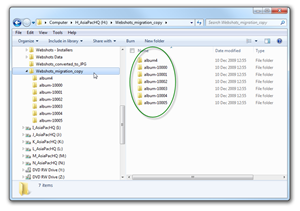
Webshots_migration_copy In the command prompt, navigate to this drive and folder, then issue a command that will traverse the entire folder collection (all of the subdirectories,or albums) and delete all of the thumbnail images in one fell swoop, like so:
       del  th*.*  /s

The /s parameter is what causes the recursion through all the subdirectories and saves you a LOT of work.

I’m using PromptPal instead of the built-in Windows command prompt, but that is immaterial here, and it should give a result like this:
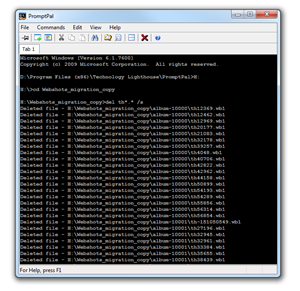
Webshots_copy_thumbnail_deletion_process Now you’re ready to begin the actual migration, so launch the UWC program and select Batch Conversion:
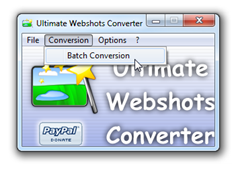
Webshots_UWC_batch_conversion1Select a suitable destination folder for the migrated images (1), specify that all the migrated images should be in a single output folder for display on the Windows 7 desktop (2), and then click the target folder selection button (3). You might want to investigate other options, such as “Avoid doubles, but that’s up to you:
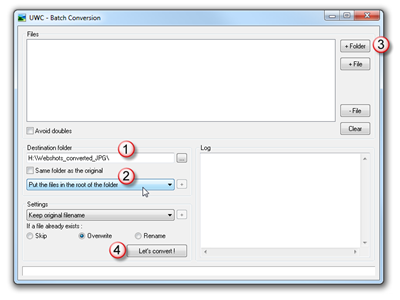
Webshots_UWC_migration_folders_and_options In my example, the target folder selection (3) looked like this:
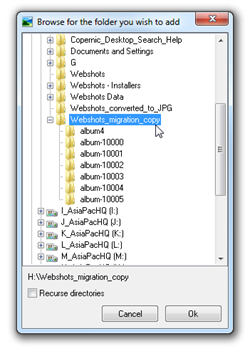
Webshots_UWC_target_folder_selectionWhen you’re satisfied that all options have been correctly specified, click the “Let’s convert!” button (4). Sit back for a short while (seconds, or perhaps several minutes, depending on how many Webshots images you have), and watch the file names as they scroll past:
Webshots_UWC_images_being_convertedLet’s assume that all went okay. (Sorry, I can’t help you if it didn’t so don’t even try asking.)

You’re now ready to tell Windows 7 that you want to use the migrated Webshots images as a changing desktop wallpaper. This looks very similar to the normal Webshots effect, with the one limitation that you don’t have the option to display the image title.

Look up the Windows 7 help for details, but essentially it’s done as follows. Firstly, right-click on the Windows 7 desktop, then select “Personalize” from the context menu and click on the “Desktop Background” link at the bottom:

Windows7_desktop_background_slide_show_optionFinally, select your Windows 7 desktop slide show options:
Windows7_desktop_background_slide_show_option2The most important thing is to point to the newly-converted images (1), all lying in a single folder ready to appear in all their glory on your Windows 7 desktop..

Choose “stretch” or whatever you want at (2), the picture change frequency at (3) and “shuffle” at (4) – and play around with these three parameters to suit your own requirements.

And there you are, all done! … A simple but lengthy sequence of steps.

UPDATE [19 December 2009]:
I checked the Webshots web site again today, to see if they had updated their statement of which Windows platforms are supported and it still only mentions Windows 2000, XP and Vista

Despite the fact that they don’t state their official support for Windows 7, I decided anyway to download and install the latest version of Webshots Desktop. The good news is that it seems to work fine under 64-bit Windows 7 Ultimate.

My main reason for doing this is because, over the years, I’ve downloaded so many high-resolution images -- nearly 16,000 of them -- that I needed the picture title to be displayed else I have no hope of knowing what some of the images are.